

BID-member shared bike scheme
Free bike hire for BID member employees
Globe Business Park BID offers a shared cycle scheme, available exclusively to BID member employees who work within the BID area. Standard bicycles can be hired free of charge.
The bikes can be collected and returned at various locations across the BID area, making them ideal for short commutes or lunchtime rides.
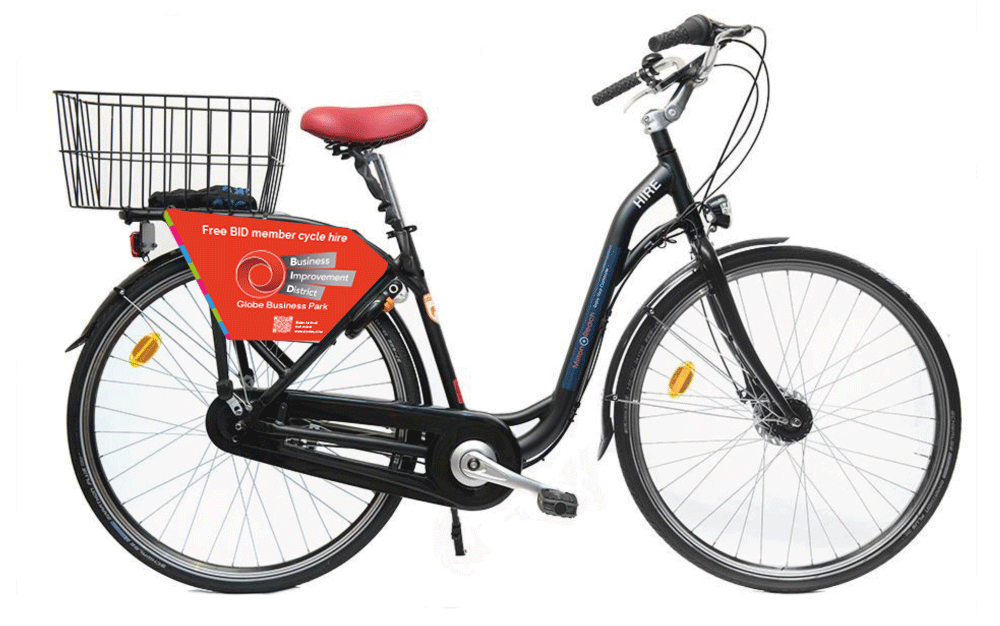
Cycle for free with the Globe Business Park BID Shared Cycle Scheme
To use the bikes, you must:
- Work for a BID levy paying business located within the Globe Business Park BID area. You can verify this by signing up to the Donkey Republic app using your work email address. All eligible businesses should already be registered. If you experience issues, please contact the BID team at globebid@groundwork.org.uk. The BID reserves the right to remove access to any business at any time at its own discretion.
- Download the Donkey Republic bike rental app on your smartphone, create an account using your work email address, read and accept the terms and conditions (as these will govern your ride) and add a payment method. Although bike hire is free, charges may apply if the bike is not returned correctly to a designated bike hub. You do not need to start or pay for a membership to use the bike scheme.
- Follow road safety rules, use cycle paths where available, and be considerate of both traffic and pedestrians. All bike use is at the rider’s own risk.
- Return the bike to a designated hub within 24 hours and ensure it is securely locked, charges will apply beyond that time.
How to get started
Step 1: Download the Donkey Republic app
To locate, hire, and return the bikes, you will need to download the Donkey Republic app. While Donkey Republic is a global bike-sharing platform, Globe Business Park BID bikes are only visible to users who work for a BID-levy paying business within the BID area.
The app can be downloaded from the App Store for Apple devices or the Google Play Store for Android devices.
Step 2: Sign up via the Donkey Republic app
Once downloaded, open the Donkey Republic app. You will need to enable Bluetooth and allow location access. Select ‘Next’ until you reach the Welcome page, then choose ‘Get started.’
A map view will open. From here, select the profile icon in the top right of your screen. If you don’t already have an account, select ‘Create account.’ When creating your account, you must use your work email address to access the BID bikes.
Once your profile has been created using your work email address, you will need to add a phone number and a payment method. Globe Business Park BID bikes are free of charge for those eligible users, however, charges may apply if you do not end your rental within 24 hours and securely lock and return your bike to one of the BID’s designated bike hubs. These are marked on the map within the app. The charges will escalate for every subsequent 24 hour period that the bike is not returned to a designated hub, these charges are detailed in the app.
You can start and end your bike rentals at different designated hubs — for example, you may start at the Globeside bike hub and finish at the BAP Pharma bike hub.
Once your profile is complete and a payment method has been added, the available BID bikes will appear on the map and are ready to use.
Please note that all bike hubs are located on private business premises under licence agreements. Access has been granted for use of the bike scheme, and users are asked to be respectful of these locations and take due care when entering and exiting, particularly in relation to vehicle movements and general site activity.
Step 3: Start your ride
Select a bike from the map shown in the app. Each bike has its own ‘bike name’, which is displayed on the phone holder attached to the handlebars. You do not need to start or pay for a membership to use the BID scheme.
Once you’ve chosen your bike, select ‘Unlock’ and pull the orange handle to release the lock on the back wheel. Once unlocked, you’re ready to ride.
During your rental, you can stop, lock, and unlock your bike as many times as you like using the app. When you want to end your rental, return the bike to a designated bike hub shown on the app’s map. Secure the bike to a stand by selecting ‘Lock’, then choose ‘End rental.’
To avoid a charge, you must end your rental within 24 hours of starting. When ending your rental, the app may ask you to take a photo of the bike securely locked at a designated hub.
How To Video
Frequently Asked Questions
How do I rent a bike?
To rent a bike, you must work for a BID-levy paying business within the BID area. If you are eligible, download the Donkey Republic app on your smartphone, create a profile, and add a payment method (see detailed steps to the left).
Once set up, open the app to view a map of the BID area; orange pins indicate cycle hub locations. Select your preferred hub and choose a bike to rent. You can then start your rental and unlock the bike directly through the app.
There is no need to start or pay for a membership to use the scheme.
Can I make stops during my rental?
During your rental period (up to 24 hours), you can lock and unlock the bike as many times as you like. When stopping, make sure the bike is parked in a suitable location—ideally at a bike stand or rack—and does not cause any obstruction. For example, if parking on a footpath, ensure the bike is positioned parallel to the path rather than across it.
Once parked, ensure the bike is securely locked using the app. You are responsible for the bike throughout the rental period and may be charged if it is not returned at the end of your hire.
How do I return the bike?
Within 24 hours:
• Return the bike to a designated hub
• Lock it securely to a bike stand using the app
• Select “End rental”
You can start and finish your journey at different hubs.
Is there a charge?
No — the scheme is free for BID member employees.
However, charges may apply if:
• The bike is not returned within 24 hours
• The bike is not returned to a designated hub
• The bike is damaged during your rental
Who can use the scheme?
Only employees of BID member businesses within the Globe Business Park BID area are eligible.
Bike Hub Locations
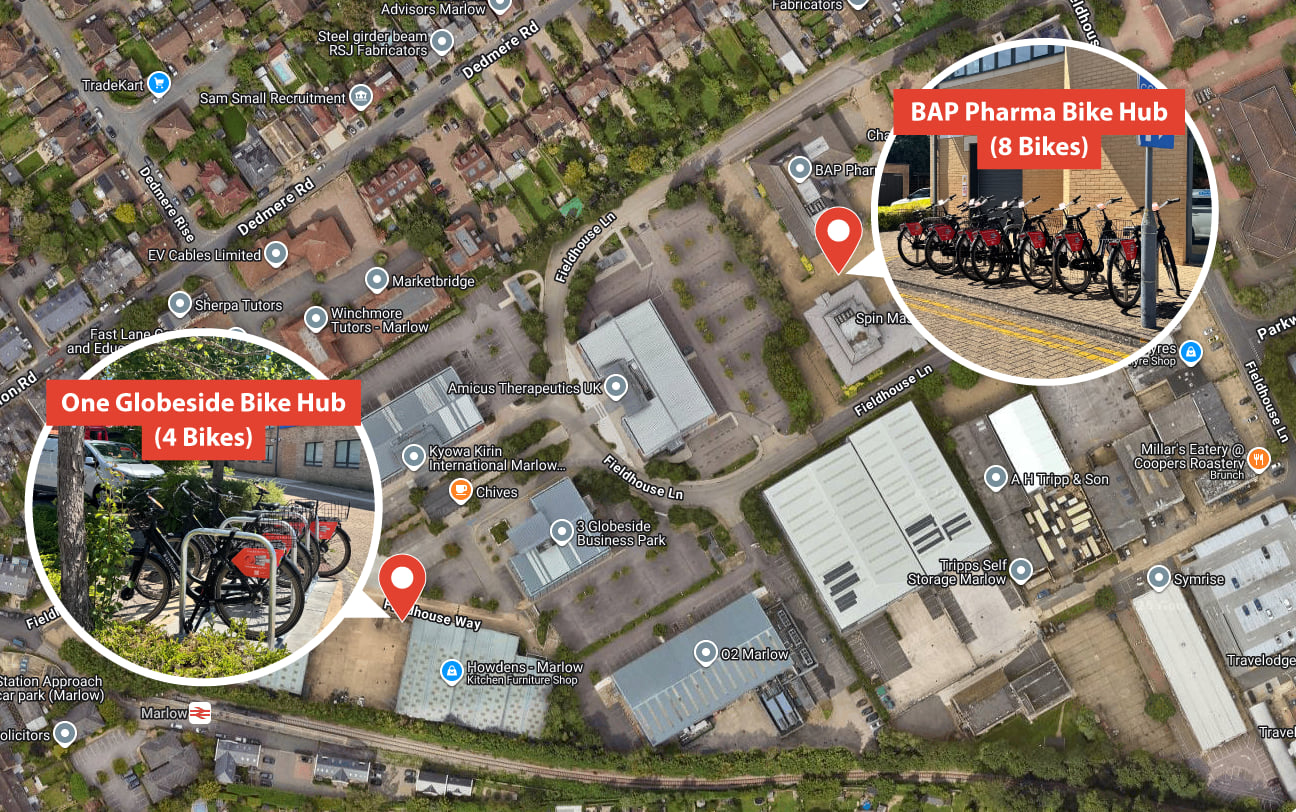
BAP Pharma Bike Hub
(8 Bikes)
Medina House,
Globe Business Park,
Fieldhouse Ln,
Marlow
SL7 1TB
One Globeside Bike Hub
(4 Bikes)
One Globeside Bike Hub
Globe Business Park,
Fieldhouse Ln,
Marlow
SL7 1HZ
Contact
Gemma Hughes BID Manager
P: 07850 310 592
E: gemma.hughes@groundwork.org.uk
Elizabeth Bennett BID Project Officer
P: 07742 875772
E: Elizabeth.bennett@groundwork.org.uk
